Google Meet attendance, taken for you
Names on the call go straight into a dated sheet with join time, leave time and minutes present.
| # | Name | Joined | Left | Present |
|---|
Use your own participant list
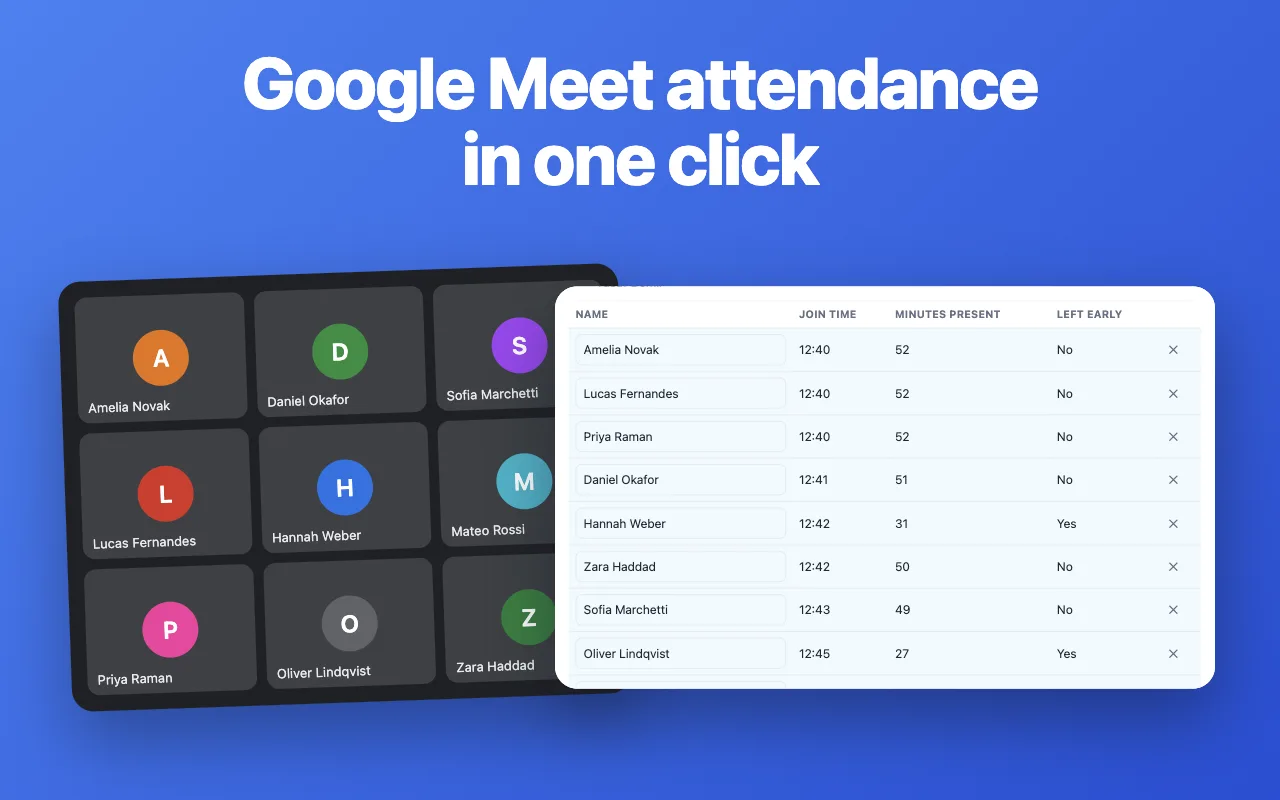
Skip the copy and paste
The free Attendance Tracker extension watches the participant list while the call runs and saves who came, when they joined and how long they stayed. One click, no spreadsheet to fill.
Add Attendance Tracker to ChromeHow to take attendance in Google Meet
- In Google Meet, open the People panel and copy the list of participants.
- Paste it here and press “Take attendance”. Adjust anyone who joined late or left early.
- Download the sheet as CSV and keep it with your class or team records.
Questions people ask
How do I take attendance in Google Meet?
Open the People panel during the call, select the list of names and copy it. Paste it here, press “Take attendance”, and every name lands in the sheet with the call start and end time.
Does Google Meet have built-in attendance?
Attendance reports exist only on some paid Google Workspace plans and arrive by email after the call. With a free account you need to record attendance yourself — this sheet or the extension does that.
Can I see who joined late or left early?
Yes. Change the join or leave time in any row and the minutes present update at once. The extension records those times automatically while the call runs.
What format is the download?
A CSV file that opens in Google Sheets, Excel and Numbers, with date, name, joined, left and minutes present.
Are the names sent anywhere?
No. The list is processed in this tab and the file is created on your device.
Does it work for Zoom or Teams?
The sheet accepts any list of names, one per line, so a copied Zoom or Teams list works too.