Draw on a webpage
The article below is a page like any other. Grab the pen and scribble on it — circle, highlight, point — then save it as a picture.
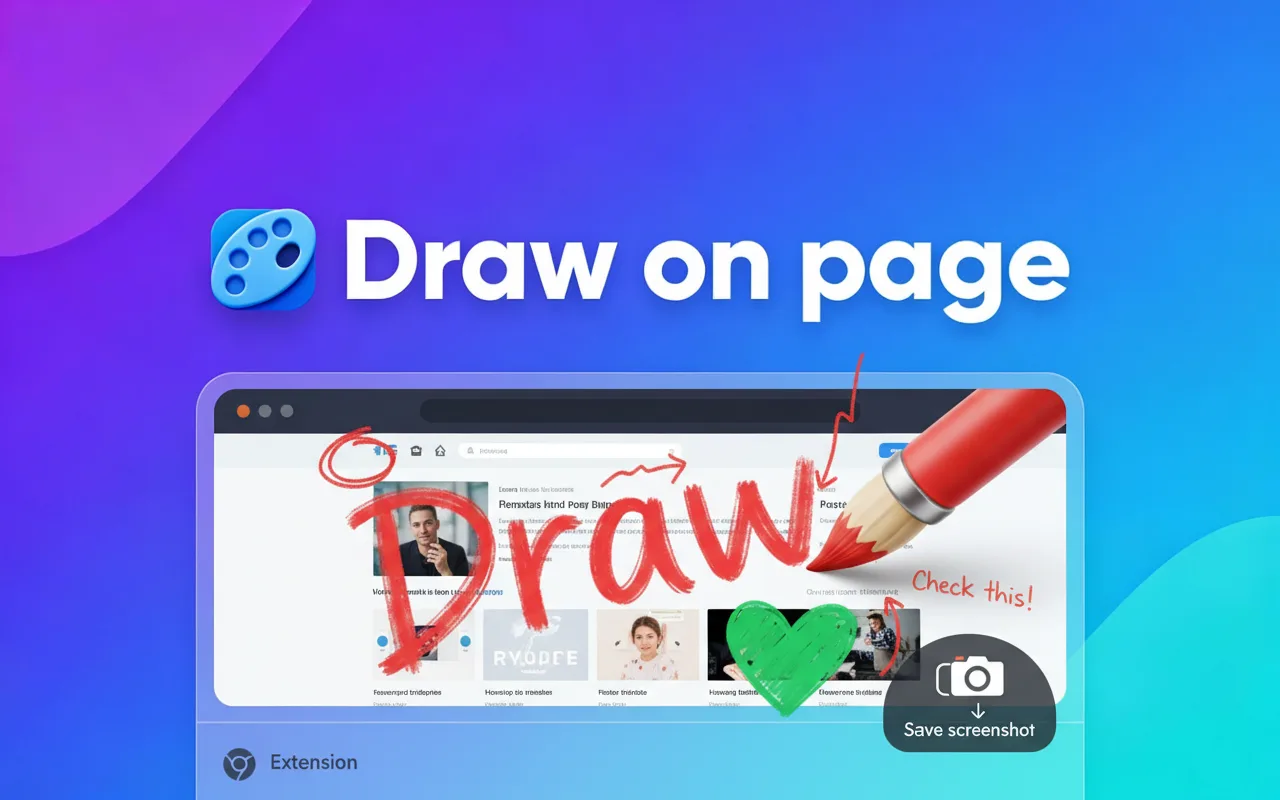
The same pen on every site
This demo only draws on its own article. The free Draw on Page extension puts the same toolbar on top of any tab — a design review, a news story, a bug in production — and saves the result as a screenshot.
Add Draw on Page to ChromeHow to draw on any webpage
- Open the page you want to mark up and click the Draw on Page icon.
- Pick a tool: pen for notes, marker to highlight, arrow to point. Change the colour if you like.
- Draw. Undo the last line with Ctrl+Z, then press “Save” to keep a screenshot.
Questions people ask
How do I draw on a webpage in Chrome?
Install the free Draw on Page extension, open any site and click its icon. A toolbar appears on top of the page: pick a pen, marker or arrow and draw right over the text and pictures.
Does drawing change the website?
No. Your lines sit on a see-through layer above the page. Reload the tab and the site is exactly as before; nothing is sent to the site or saved on it.
Can I save the page with my drawing?
Yes. “Save” makes a PNG screenshot of the page together with your notes, ready to paste into a chat, a ticket or an email.
What can I use it for?
Showing a designer which button is off, marking up a pull request preview, explaining a form to a parent, highlighting lines in an article you are studying, or teaching on a shared screen.
Does it work on Google Docs, YouTube or PDFs opened in Chrome?
It works on regular web pages, including Google Docs and YouTube. Chrome’s own pages such as the settings and the Chrome Web Store are protected, so no extension can draw on them.
Is it free?
Yes, the extension is free and does not ask for an account.